SETUP GUIDE · FOR BUYERS
Make Shade Studio yours, step by step
This guide takes you from your first copy to a live site with your own work, words and brand. You don’t need to write code. Follow the sections in order the first time, then come back to any section when you need it. Tip: names in this guide match the names you see in Framer, so you can search for them in the Layers panel and the CMS.
01
Getting started
Get your own copy of Shade Studio, learn your way around, and set the site-wide details: name, icons, search text and sharing image.
Get your copy
01
Open your remix link. Use the Framer remix link that came with your purchase. Framer asks which workspace to copy the template into. Pick yours and confirm.
02
Work in your copy. The copy opens in the Framer editor and belongs only to you. Nothing you change touches the original template.
03
Preview as you go. Press Preview (the play icon at the top right) to click through the site like a visitor. Nothing goes live until you press Publish.
The pages
Open the Pages panel on the left. Shade Studio ships with these pages:
Home — / — Hero, Why Shade, featured work, services carousel, process, testimonial, closing statement
Studio — /studio — About, stats, belief, how we think, client logos, awards, story timeline, team, process
Project listing — /project/project-listing — All projects with service filters and Load More
Project page — /project/:slug — One page per project, built from the PROJECTS collection
Archive — /archive — A draggable canvas of every project
Contact — /contact — The Rocky multi-step contact form
Setup Guide — /setup-guide — This guide, for you only. Delete it before launch
404 — /404 — Shown when a link is broken

The Pages panel. Home, Studio, the project pages, Archive, Contact, Setup Guide and 404.
Site settings
Open the menu at the top left of the editor and choose Settings (shortcut Alt+5). The General tab holds the site-wide details.
01
Site title and description. Under Site settings, type your studio name into Title and one sentence about you into Description. These are the defaults for any page that has no text of its own.
02
Language. Leave it on en, or set your site language so browsers and screen readers read it correctly.
03
Favicon. Under Site images, upload a Favicon: 64 × 64 px PNG. You can upload a Light and a Dark version.
04
Social preview. Upload a 1200 × 630 px image (JPG or WebP, under 300 KB). It shows when your link is shared in messages and on social media.
05
Apple touch icon. Upload a 180 × 180 px PNG. It is the icon people see when they add your site to a phone home screen.
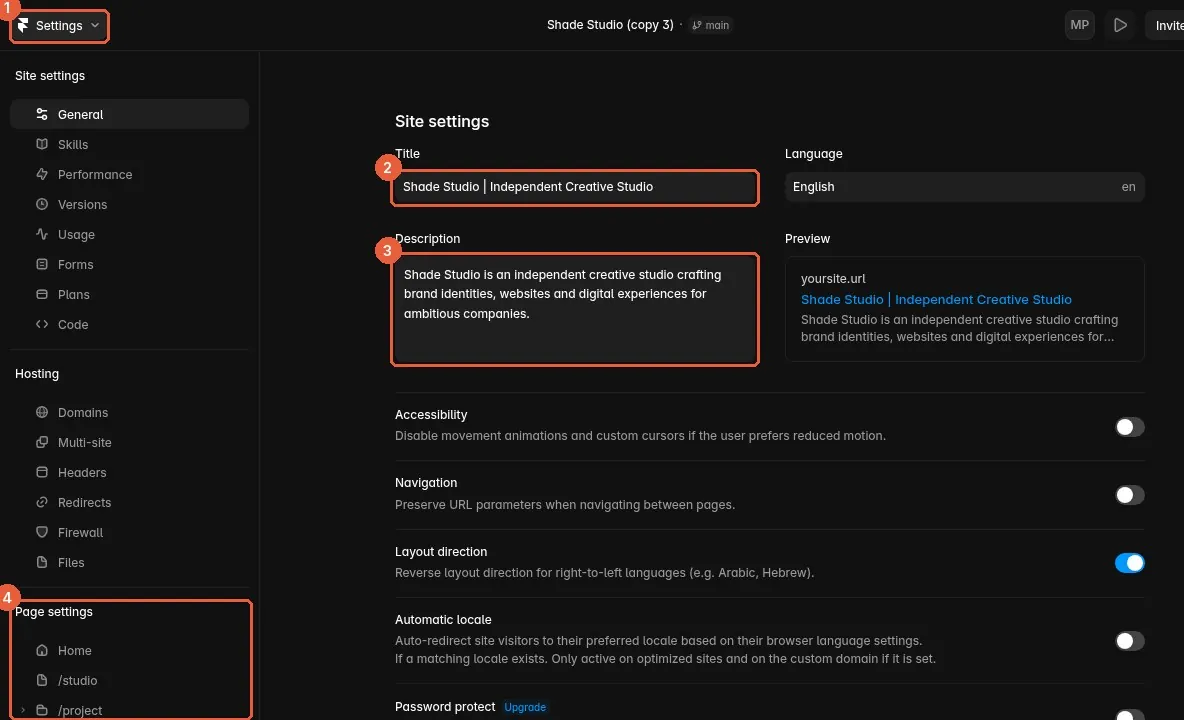
Settings > General. 1 the Settings view, 2 Title, 3 Description, 4 Page settings for each page.
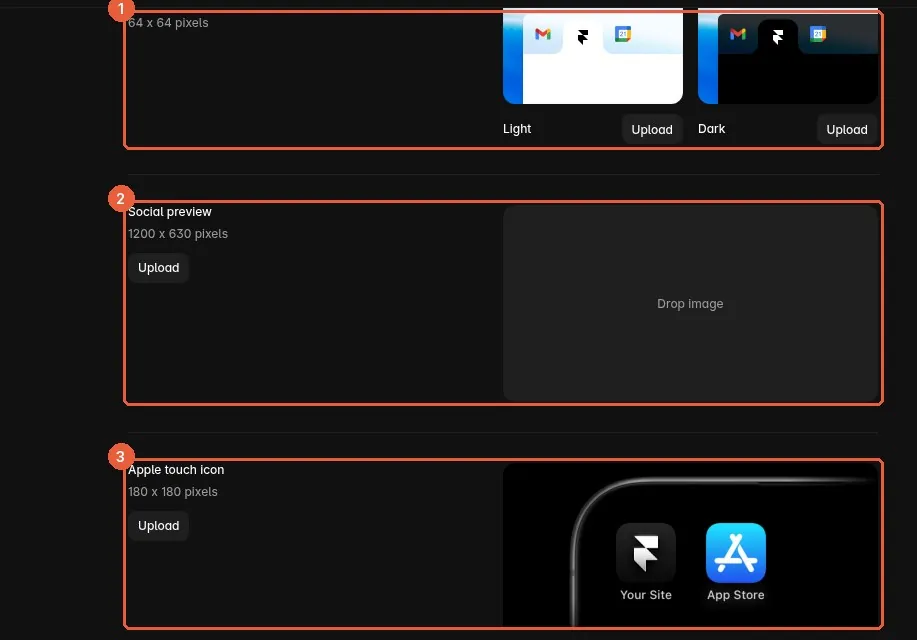
Site images: 1 Favicon (64 × 64), 2 Social preview (1200 × 630), 3 Apple touch icon (180 × 180).
Search text for each page (SEO)
01
Open a page’s settings. In Settings, under Page settings on the left, click a page (Home, /studio, /project, /archive, /contact).
02
Write a Title and Description. Keep the title under about 60 characters, for example “Your Studio | Brand and Web Design”. Keep the description to one or two sentences, under about 155 characters.
03
Add a page Social preview if you want. A page image (1200 × 630 px) overrides the site-wide one for that page.
04
Project pages. The /project page is a CMS template. Its title and description can use the project’s own fields, such as Project Name, so every project gets its own search text.
05
Hide pages you don’t want in Google. Turn off Search engines for the Setup Guide page (or delete the page before launch).
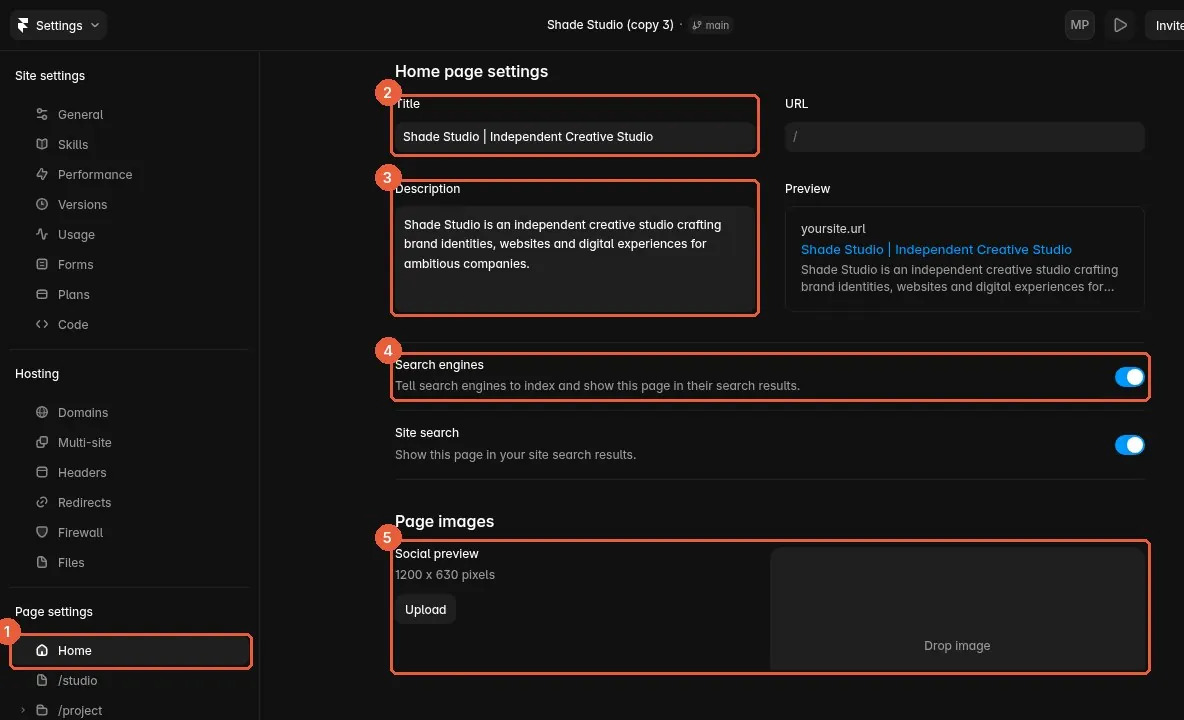
Page settings for Home: 2 Title, 3 Description, 4 Search engines switch, 5 the page’s own Social preview.
Custom domain. Connecting your own domain is covered in section 11, Publishing and custom domain. It needs a paid Framer site plan.
02
Global styles, fonts and logo
Change colours and type once, in the shared styles, and the whole site follows. Then swap in your logo.
How the template is built
• Main Layout holds everything shared: the navigation (Nav), the menu, the footer with its newsletter card and falling letters, the preloader, smooth scrolling (Lenis) and the fluid cursor effect (Fluid Simulation). Edit these once and every page updates.
• Each page has three sizes side by side: Desktop, Tablet and Phone. Text and images you change on Desktop flow down. Size, spacing and visibility changes made on Tablet or Phone only affect that size.
• Repeating content (projects, home services, studio awards, contact wording) lives in the CMS. See section 4.
• Animated parts are code components. Select one and its settings appear in the right panel. You never need to open the code.
To open Main Layout: open the Assets panel on the left, find Main Layout under Templates and double-click it. You can also double-click the navigation or the footer on any page.
Colours
01
Open the colour styles. Assets panel > Styles > Color. They are grouped as Base, Accent, Error, Success, Warning, Focus, Active, Fixed - Light and Fixed - Dark.
02
Change the main ones first. Base / Surface / 1 is the page background (white), Base / Content / 1 is the main text (#111111), Base / Content / 2 and 3 are the softer greys. Accent / Surface / 1 is the red accent (#DA382E), used on the video player’s Play and Close buttons. Dark buttons and dark sections use Base / Content / 1 (#111111).
03
Keep contrast. Text on its background should stay easy to read: dark text on light surfaces, light text on dark ones.
Fixed - Light and Fixed - Dark. These groups stay the same in every theme. The logo switches to Fixed - Dark / Content / 1 when it sits over a dark section, so keep that colour light.
Fonts and text styles
01
Open the text styles. Assets panel > Styles > Text. Expressive holds the big display and headline sizes (Display L, M, S and Headline L, M, S). Readable holds titles, body text and labels. Label and Body cover the rest.
02
Change the font in a style. The template uses Inter throughout. Change the font in each style and every text that uses it follows. Sizes are set per breakpoint (1440 and 810), so check Tablet and Phone after a change.
03
Update the code components too. Code components carry their own Font and Color settings and do not follow the text styles. Select each one and match it to your brand: the home headline (PhysicsTextComponent), the animated titles (AdvancedReel), the services carousel (ServiceSection), the featured list (ProjectReveal), the process stack (ScrollCornerStack), the closing statement (GsapScrollText), the preloader (ShadePreloader), the newsletter card (NewsletterCard), the footer letters (FallingLettersFooter) and the filters (Service Filter).
Your logo
01
Open the Nav. Open Main Layout, then double-click Nav to open the Nav component.
02
Select the Logo layer. The logo is an image layer named Logo. Replace its image with your own logo: a PNG or SVG with a transparent background, one colour, about 512 px wide.
03
Keep the name Logo. The logo changes colour by itself: dark over light sections, light over dark ones. It finds the layer by its name, so keep it named Logo.
04
Force light or dark where needed. If the logo picks the wrong colour over a section, add [dark] or [light] to that section’s layer name, for example “Footer [dark]”.
05
Update the logo snippet. Settings > Code has a small snippet that serves a lighter copy of the original logo. After you change the logo, delete that snippet (see section 10), or the old logo may still show on the live site.
Careful: Do this before you publish. The logo snippet in Settings > Code points at the original logo file. If your new logo doesn’t appear on the live site, that snippet is the reason.
03
Edit every page, section by section
What each section is, and where you change it. Plain layers you edit on the canvas: double-click text to type, select an image to replace it. Code components you edit in the right panel.
Basics that apply everywhere
01
Text. Double-click any text on the canvas and type. Press Escape when done.
02
Animated text. Most titles are AdvancedReel code components (animated scroll text). Select one and change Text in the right panel. A hidden “(phone text)” layer sits next to some of them; leave it alone.
03
Links and buttons. Select a button and set its Link in the right panel: one of your pages, or a full web address that starts with https://.
04
Images. Select an image and replace it in the image fill in the right panel. Keep the same shape (landscape or portrait) so the layout stays balanced. See section 8 for sizes.
Home (/)
Hero — The big headline “WE MAKE BRANDS IMPOSSIBLE TO IGNORE.” and the hero video — Headline: select PhysicsTextComponent, change Text Lines. Video: select VideoPlayer, change Video Source and Poster Image
Why SHADE — Title, description and the reason cards — Canvas. Cards are Why Us Section Card instances; edit their text in the right panel
Work Section — The featured projects list — CMS: PROJECTS > Featured on Homepage. Count: ProjectReveal > Projects Shown (section 4)
SERVICE SECTION — The services carousel — CMS: SERVICES SECTION (HOME). The ServiceSection component reads it
Process — Five process steps with images — Select ScrollCornerStack and edit Images (Image, Title, Description per step)
Testimonial — Quote, name and media — Canvas, inside Testimonial Card
GSAP Text — The closing statement — Select GsapScrollText, change Text
CTA Section — The call to action above the footer (shared) — Edit the CTA Section component once; every page updates
Studio (/studio)
Hero — “About Shade”, intro text, hero video, four stats — Titles: AdvancedReel > Text. Video: Media Card > Video and Poster. Stats: each Stats Card (label, start and end number)
Our Belief — Statement, label, description and image — AdvancedReel > Text; image in Media Card > Image
How we think — Title, short description, steps — Canvas; steps are Step Card instances
Brands we work with — Client logos — Select Logo Ticker and replace each logo image in the right panel. Give every logo image alt text that contains the word “logo” (for example “Northstar logo”), and do the same for testimonial logos. The fluid cursor trail skips images whose alt text contains “logo”; without it, transparent logos show as dark boxes when the cursor passes over them.
AWARDS & RECONGNITION — The awards table — CMS: AWARDS SECTION (STUDIO)
Our Story — Story text and timeline — AdvancedReel > Text; timeline: ScrollTimeline > Items (Label, Description, Big Text)
Team Section — Team members — Select TeamSection > Team Members (Name, Title, Photo)
Process — Process images and captions — Select ScrollRevealImage (ScrollCornerStack) > Images
Project listing (/project/project-listing)
01
Projects. The grid lists every item in PROJECTS. Nothing to edit here; add projects in the CMS.
02
Filters. Select Service Filter and open Filters. Each filter has a Label and Keywords. A project appears under a filter when its Services field contains one of those keywords (for example the filter “Web Development” with keywords “WEB, E-COMMERCE”). Write services the same way in every project.
03
Other filter settings. All Label, Featured Label, A–Z Label and Empty Text (“No projects under this service yet.”) are plain text settings.
Project page (/project/:slug)
Every project page is built from one PROJECTS item. Edit the content in the CMS (section 4), not on the canvas. The page sections, top to bottom: Project Name and info row (Client, Year, Industry, Services), hero image or video, OVERVIEW, CHALLENGE, OUR APPROACH with four steps, SHOWCASE gallery, RESULTS with four counters, then the CTA Section.
Careful: Keep the “CMS source” frames. Next to the project page you’ll see frames named “CMS source · Overview Description (keep, feeds the animated text)” and similar. They pass the formatted CMS text to the animated titles. Don’t delete them.
Archive (/archive)
The Archive is an endless canvas (InfiniteCanvas) of every project. With CMS Source set to CMS it reads each project’s Hero Image, Project Name, Year and Industry from PROJECTS through the hidden Archive Data list, so you don’t edit it directly. Card Data inside InfiniteCanvas is a manual fallback used only if you switch CMS Source to Manual.
Contact (/contact)
The whole page is one component, InteractiveContactForm, with Rocky the robot as your guide. All of its wording and email settings come from the CONTACT PAGE collection. Section 5 covers setup in full.
404 and Setup Guide
• 404: edit the heading and the five link buttons (Back to home, See our work, Studio, Archive, Contact) on the canvas.
• Setup Guide: a page for you, not your visitors. Delete it (or turn off Search engines for it) before you share your site.
Navigation, menu and footer (Main Layout)
Nav — Logo and links — Nav component. Keep the Variant and link states as they are; they run the mobile menu
Menu — Menu links — Menu component; links point to Home, Studio, Work, Archive, Contact
Newsletter card — Where sign-ups are sent, heading and messages — Select NewsletterCard > Your Email (sign-ups go here through FormSubmit), Heading, Placeholder, Success Msg, Error Msg
Footer details — Address, phone, email, social links, copyright — Select each item and change its text and link
Falling letters — The letters that drop in the footer — Select FallingLettersFooter > Letters, Font Family, Font Weight, Letter Color
Careful: Newsletter address. Your Email on the newsletter card ships as youremail@domain.com. Change it to your own address, publish, then sign up once yourself: FormSubmit sends a one-time activation email you must confirm (see section 5).
04
CMS collections, field by field
Open the CMS from the menu at the top left (Alt+2). Shade Studio has four collections. Change an entry once and every page that shows it updates.
PROJECTS — 8 — Project listing, project pages, Archive, the Home featured list
SERVICES SECTION (HOME) — 7 — The services carousel on Home
AWARDS SECTION (STUDIO) — 7 — The awards table on Studio
CONTACT PAGE — 1 — All wording and email settings of the contact form
Add, duplicate, remove and reorder
01
Open an item. Hover a row in the table and click Open (or double-click the row).
02
Add a project the easy way. Right-click an existing item and duplicate it, then replace its content. Every field keeps the right format.
03
Set the Slug. The slug is the web address, for example /project/your-project. Use lowercase words joined by hyphens, and give each item its own slug.
04
Draft or Live. Status at the top of each item. Draft items stay off the live site.
05
Remove an item. Delete the whole item, not just its fields. Remove demo items you don’t need before launch.
06
Order. Drag rows up or down. The Home featured list and the listing follow CMS order.
PROJECTS

A PROJECTS item: 1 Project Name and Slug, 2 Featured on Homepage, 3 Hero Image and Hero Video, 4 Overview.
Project Name — Text — Big title on the project page and the name in lists
Client, Year — Text — Info row on the project page; Year also shows in lists
Industry — Text — Shown in the Home featured list, the listing and the Archive, e.g. FINTECH
Services — Text — Info row, and what the listing filters match against, e.g. STRATEGY · UI/UX · WEB DEVELOPMENT
Featured on Homepage — Toggle — On = the project can appear in the Home featured list
Hero Image — Image — Cover: project page hero, cards, the Home featured list and the Archive
Hero Video — File (MP4) — Optional. Shown only when Hero Image is empty (see section 9)
Overview Title, Overview Description — Text, formatted text — OVERVIEW section
Image 1, Image 2 — Image — The two OVERVIEW images
Challenge Title, Challenge Description, Challenge Image 1 — Text, formatted text, image — CHALLENGE section (title and description are required)
Our Approach Title, Our Approach Description — Text, formatted text — OUR APPROACH intro
Step 1–4 Title, Step 1–4 Description — Text — The four approach steps
Showcase Title, Showcase Description — Text — SHOWCASE intro (description is required)
Gallery — Image list — The SHOWCASE gallery. Four images look best
Result Section Title — Text — RESULTS heading
Result 1–4 Icon — Icon — Pick an icon for each counter
Result 1–4 Title — Text — Label under each counter
Result 1–4 Start Number, End Number — Number — The counter animates from start to end
Result 1–4 Suffix — Option — +, %, K or X after the number
Featured projects on Home
01
Pick the projects. Turn on Featured on Homepage for each project you want on Home. Turn it off to take one off Home; it still shows everywhere else.
02
Set the order. Home shows featured projects in CMS order. Drag a project up or down to move it.
03
Choose how many show. On Home (Desktop), select ProjectReveal in the Work Section and set Projects Shown. Tablet and Phone follow Desktop unless you change them there.
04
How the two work together. Only featured projects count. If Projects Shown is higher than the number featured, Home shows just the featured ones.

Home > Work Section: 1 the ProjectReveal layer, 2 CMS Source (CMS or Manual), 3 Projects Shown.
The manual fallback list. ProjectReveal also has a Projects list in its settings. It is a backup, used only if CMS Source is set to Manual. Leave CMS Source on CMS so the list always matches your projects and industries.
SERVICES SECTION (HOME)
Title — Service name on the carousel card, e.g. Web Development
Image — Card image. Portrait 4:5, 900 × 1125 px
Description — Short line under the title
Link, Open in New Tab — Where the card goes when clicked (optional)
Video — Optional MP4 that plays on the card instead of the image
Two copies of the service images. The carousel component (ServiceSection) also keeps its own Panels list with the same seven images. With Content set to CMS it reads the collection, but if you ever switch Content to Manual, update Panels too so both match.
AWARDS SECTION (STUDIO)
Award Name — e.g. Website of the Month
Platform — e.g. Awwwards, FWA
Year — e.g. 2024
Hover Image — Image that follows the cursor when a row is hovered. Landscape 4:3, 1000 × 750 px
CONTACT PAGE
One item named contact holds every setting for the contact form, in three groups: Form Email Sending (Email Method, Recipient Email, Web3Forms Access Key), Page Text (every line Rocky says, the answer options and the messages) and Step GIFs. Section 5 covers email sending and section 6 covers the GIFs.
Page Heading — Page title (H1) for search engines
Intro Line 1, Intro Line 2 — Rocky’s greeting
Intro Button 1, Intro Button 2 — The two choices: Start a project / Ask a quick question
Write Us Email — The email address shown on the page for people who prefer to write. Change it to yours
Name, Company, Services, Budget, Timeline, Brief, Email Question — The questions in the Start a project flow
Services List, Budget List, Timeline List — Answer options. Separate them with commas or new lines
Celebration Line — The line after a project is sent
Quick Q Topic Question, Quick Q Topic Options, Quick Q Name/Email/Message Question — The Ask a quick question flow
Email Subject — Subject of the email you receive
Success Message, Error Message — Shown after sending, or if sending fails
05
Contact form and email setup
The Contact page is a guided chat with Rocky. Visitors either Start a project (seven steps, with an optional brief file) or Ask a quick question. This section makes sure every message reaches you.
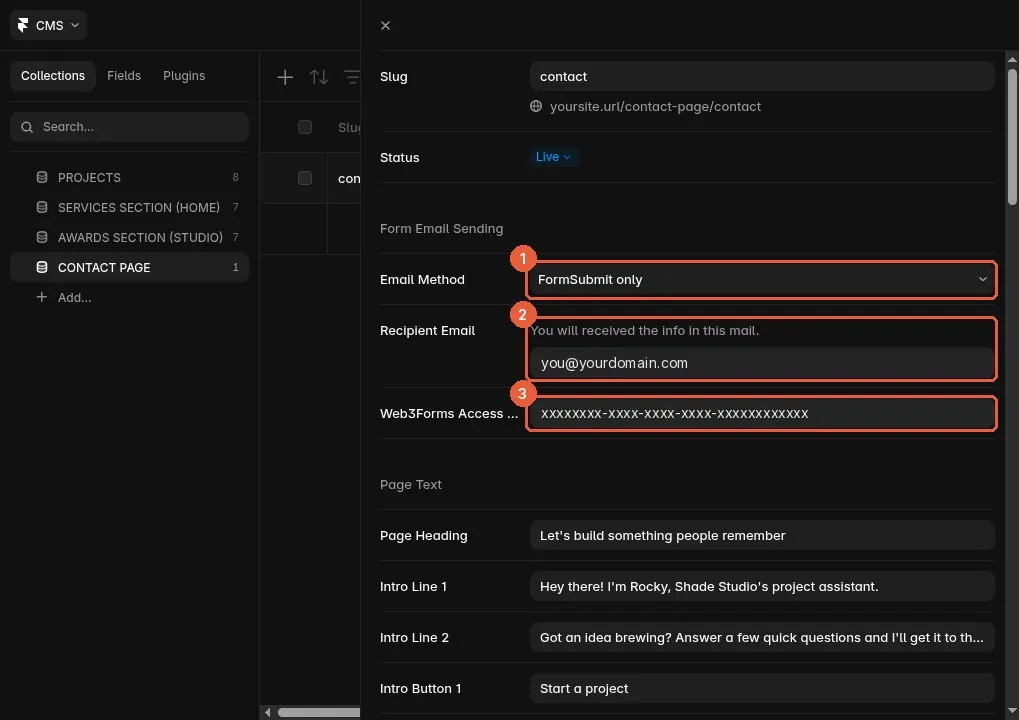
CMS > CONTACT PAGE > contact. 1 Email Method, 2 Recipient Email, 3 Web3Forms Access Key.
Choose an Email Method
FormSubmit only (default) — Everything goes to Recipient Email through FormSubmit. Brief files arrive as real email attachments. — You want the simplest setup and real attachments. Recommended for most sites.
Auto (both + backup) — Messages with a file go through FormSubmit (attachment). Messages without a file go through Web3Forms. If one service fails, the other sends a backup copy. — You want the most reliable delivery and have a Web3Forms key.
Web3Forms only — Everything goes through Web3Forms to the email the access key was created with. Files arrive as a download link, not an attachment. — FormSubmit is blocked or unwanted where you are.
Set it up, step by step
01
Open the CONTACT PAGE item. CMS > CONTACT PAGE > open the item named contact. The Form Email Sending group is at the top.
02
Pick the Email Method. Choose one of the three options above.
03
Enter your Recipient Email. Type the address that should receive messages, for example you@yourdomain.com. It is used by FormSubmit only and Auto.
04
Add a Web3Forms Access Key (Auto or Web3Forms only). Go to web3forms.com, enter the email address that should receive messages and create an access key. Paste the key into Web3Forms Access Key. Web3Forms always sends to the email the key was made with, not to Recipient Email.
05
Change Write Us Email. In the Page Text group, set Write Us Email to the address you want visitors to see.
06
Publish. Press Publish. If the live form still behaves the old way, publish once more. A publish made seconds after a CMS change can still carry the old value.
07
Send a test and activate FormSubmit. Open your live site, go to Contact and send a short test project. The first time, FormSubmit emails Recipient Email an activation message instead of your test. Open it and click the activation button. From then on, messages arrive normally.
08
Test again. Send one more test, with a small PDF if you use files. Check your inbox and the spam folder.
Careful: Activate again after a domain change. FormSubmit activation is per web address. When you connect a custom domain (or change it), the first message from the new address triggers a new activation email. Click it again. Do the same for the newsletter card in the footer.
File attachments
• FormSubmit only and Auto: the brief file arrives as a real attachment on the email.
• Web3Forms only: the free Web3Forms plan can’t attach files, so the email contains a temporary download link instead. Download the file soon; the link expires (up to about 72 hours).
• Sending a file takes longer. Rocky shows a spinner, then the success screen, and the send finishes in the background.
Webhook (optional, advanced)
On the Contact page, select InteractiveContactForm. In the right panel, Webhook URL accepts an address from Formspree, Formspark, Basin, Zapier or Make. When it is filled and Email Method is Auto, each message is posted as JSON to that address instead of email. Leave it empty to send by email.
Other form settings in the right panel
Robot Theme — Rocky’s colour: Industrial White, Matte Obsidian, Tactical Graphite or Cyber Midnight
Sound FX — Turns Rocky’s sound effects on or off
Voice API URL — Optional. Leave empty to use the browser’s built-in voice
Fallback Email — A second address used as a direct backup
Not getting messages? Check Recipient Email for typos, look in spam, make sure you clicked the FormSubmit activation link for this exact web address, and publish once more. With Web3Forms, check the inbox of the email the key was created with.
06
Step GIFs on Rocky’s screen
Each step of the contact chat can show your own GIF on Rocky’s screen. They are optional: an empty field keeps Rocky’s animated eyes.
Intro GIF — The first screen, with the two buttons
Step 1 GIF (Project) … Step 7 GIF (Project) — Start a project, steps 1–7: Name, Company, Services, Budget, Timeline, Brief, Email
Success GIF (Project) — After a project is sent
Step 1 GIF (Quick Q) … Step 4 GIF (Quick Q) — Ask a quick question, steps 1–4: Topic, Name, Email, Message
Confirm GIF (Quick Q) — The confirm screen of a quick question
Success GIF (Quick Q) — After a quick question is sent
01
Make the GIF. Keep it short and light: a few seconds, about 480 px wide, close to square, under 1 MB. A dark background blends into the screen.
02
Upload it. Open CMS > CONTACT PAGE > contact, scroll to Step GIFs and drop the GIF into the field for that step.
03
Publish and check. Each GIF loads only when its step appears, so it doesn’t slow down the page. Clear a field to bring back Rocky’s eyes.
07
Animations and interactions
Shade Studio’s motion comes from code components. You can safely change their text, fonts, colours and the switches listed here. Leave the rest of their settings and the code alone.
Preloader — ShadePreloader in Main Layout > Preloader — Content (your name), Theme, Font, Color, Background, Once / Session — Gravity, Center Hold, Pile Settle unless you test them
Fluid cursor trail — Lusion Fluid (Fluid Simulation) in Main Layout — Lusion Fluid on/off, On Footer on/off, On Phones on/off — Its position and size in the layout
Smooth scrolling — SmoothScroll (Lenis) in Main Layout — Intensity (a little) — Don’t delete it; several scroll effects rely on it
Site-wide parallax — Parallax Sitewide in Main Layout — Strength — —
Hero headline — PhysicsTextComponent (Home > Hero) — Text Lines, Typography, colours, Scroll Reactive — Its frame size
Animated titles — AdvancedReel (many pages) — Text, Semantic Tag, Color, Font — Trigger, Scroll Trigger, the hidden “(phone text)” layers
Featured work — ProjectReveal (Home) — Projects Shown, Headers, colours, fonts — CMS Source, Data Layer, Item Layer
Services carousel — ServiceSection (Home) — Panel size, Auto Advance, Hold, fonts, colours — Content (keep CMS), CMS List
Process stack — ScrollCornerStack (Home, Studio) — Images, Title, Description, colours, fonts — Device View
Closing statement — GsapScrollText (Home) — Text, Font, Font Color — Scroll Distance, Start Earlier
Footer letters — FallingLettersFooter — Letters, Font Family, Font Weight, Letter Color — Max Letters, Spawn Interval (performance)
Filters — Service Filter (listing) — Filters, labels, colours — Sort Layer, Match Layer, URL Param
Archive canvas — InfiniteCanvas (Archive) — Search Bar, Appearance colours — CMS Source, Data Layer, Item Layer

Main Layout: 1 the Main Layout breadcrumb, 2 the ShadePreloader layer, 3 Content, 4 Theme, Font, Color and Background, 5 Once / Session.
Careful: Hidden helper layers are part of the design. Hidden lists such as Home Projects Data and Archive Data, the “(phone text)” layers and the “CMS source · …” frames feed the animations. They look empty or hidden on purpose. Don’t delete or rename them.
Effects missing on the canvas? The preloader, the fluid trail, smooth scrolling and most scroll animations only run in Preview or on the published site. The fluid trail runs on phones and touch tablets too, in a lighter version that starts on the first touch. To turn it off there, select Lusion Fluid in Main Layout and switch On Phones off (switch Lusion Fluid off to remove it everywhere). Visitors who ask their device for reduced motion get calmer animations and no fluid trail.
Code overrides. A few layers carry small code overrides (for example the Logo layer and the project page’s Video+Image frame). Keep those layer names as they are; the overrides find the layers by name.
08
Images
Replace the demo images with your own and keep them light, so the site stays fast.
Replace an image
01
CMS images. Project, service and award images live in the CMS (section 4). Open the item and drop a new image into the field.
02
Canvas images. Select the image layer and replace it in its image fill in the right panel.
03
Component images. For code components (Process stack, Team, Logo Ticker, Media Card, VideoPlayer poster), select the component and replace the image in its settings.
04
Write alt text. Every image has an alt text box next to it. Describe what is in the picture in a short sentence. It helps screen readers and search engines. For logos (client logos, testimonial logos), include the word “logo”, for example “Northstar logo”. The fluid cursor trail skips those images; without it, transparent logos show as dark boxes when the cursor passes over them.
Recommended sizes
Project Hero Image (cover) — 4:3 landscape or 3:4 portrait — 1536 × 1152 or 1152 × 1536 — ≤ 200 KB
Image 1, Image 2, Challenge Image 1, Gallery — 4:3 landscape — 1536 × 1152 — ≤ 150 KB
Services Image — 4:5 portrait — 900 × 1125 — ≤ 100 KB
Awards Hover Image — 4:3 landscape — 1000 × 750 — ≤ 60 KB
Home hero poster (VideoPlayer) — 16:9 — 1600 × 900 — ≤ 120 KB
Home Process images — about 16:9 — 1600 × 900 — ≤ 100 KB
Studio hero / Our Belief — 4:5 / 2:3 portrait — 1000 × 1250 / 1000 × 1500 — ≤ 100 KB
Team photos — 3:4 portrait — 900 × 1200 — ≤ 80 KB
Testimonial media — 1:1 — 1000 × 1000 — ≤ 80 KB
Contact background — wide — 1600 × 720 — ≤ 100 KB
Social preview — 1.91:1 — 1200 × 630 — ≤ 300 KB
Keep them optimized
• Export at about twice the size the image is shown on screen, and no larger. Bigger files don’t look sharper; they only load slower.
• Use WebP (or JPG at about 80% quality). Avoid PNG for photos.
• Aim for 200 KB or less per image; small images and thumbnails can be under 100 KB.
• Free tools: Squoosh (squoosh.app) or TinyPNG. Remove location and camera data when you export.
• Keep the same orientation as the demo image so crops stay balanced on every screen size.
09
Videos
Video makes Shade Studio feel alive, but it is the heaviest thing on any page. Use it where it counts.
Home hero — Select VideoPlayer (Home > Hero > Video). Change Video Source and Poster Image — Set Image Source to an image; it replaces the video
Studio hero — Select the Media Card in Studio > Hero > Video. Change Video and Poster — Set Media Type to Image and choose an Image
Services cards — CMS: SERVICES SECTION (HOME) > Video — Clear the Video field; the Image shows
Project hero — CMS: PROJECTS > Hero Video — Leave Hero Video empty
Testimonial — Inside Testimonial Card on Home — Use an image instead
Project pages show the image first. When a project has both a Hero Image and a Hero Video, the page shows the image and never downloads the video. To show a video on a project page, leave its Hero Image empty. Its card in lists still needs an image, so keep a cover in mind.
• Use MP4 (H.264), muted, 6–15 seconds, looping.
• Keep each file under about 5 MB; 1280–1920 px wide is plenty.
• Always set a Poster Image. It shows instantly while the video loads and on slow connections.
10
Keep it fast
Shade Studio is tuned to score in the 90s on Google Lighthouse. These habits keep it there.
01
Keep images light. Follow the sizes in section 8. Image weight is the biggest single factor in mobile scores.
02
Be careful with the top of Home. The hero headline and hero poster are the first things measured. Keep the poster small (WebP, about 100 KB) and don’t add more media above the fold.
03
Update the speed code when you change those files. Settings > Code holds a few small speed scripts. At the start of <head>: one starts the Home hero image download early, and one gives phones a tiny built-in copy of the hero image so it shows in the very first frame. At the end of <head>: a logo override that serves a lighter copy of the logo. If you replace the hero image or the logo, delete the matching script (or update it with your new file). Otherwise phones can keep showing the old hero image, and browsers download files your page no longer uses.
04
Use fewer, shorter videos. Each video adds megabytes. Prefer a still image with a good poster.
05
Don’t stack extra effects. Every added code component, embed or third-party script (chat widgets, trackers) adds work for phones. Add only what you need.
06
Keep the hidden helper lists. The hidden Home Projects Data list is already set to load no images. Don’t delete or restyle it.
07
Test after big changes. Open pagespeed.web.dev, paste your live address, and check Mobile and Desktop. Run it two or three times; mobile scores move a few points between runs. Mobile tests simulate a slow phone on a slow network, so look at the average of a few runs rather than one number.
Careful: Changed the Home hero image? Open Settings > Code and remove the hero scripts at the start of <head> (or swap in your new image). If you skip this, phones may still show the original Shade Studio hero image.
11
Publishing and custom domain
Your changes stay in the editor until you publish.
01
Delete the Setup Guide page. It is for you, not your visitors. Delete it in the Pages panel before you share your site.
02
Press Publish. Top right of the editor. The first time, Framer gives your site a free framer.app address.
03
Publish again after every change. If a change doesn’t show on the live site, publish once more and refresh the page.
04
Connect your own domain. Settings > Domains. A custom domain needs a paid Framer site plan. Connect a domain you already own, or claim one through Framer. If you bought it elsewhere, Framer shows the DNS records to add at your domain provider.
05
Give DNS time. New DNS records can take from a few minutes to a day or two to work everywhere.
06
Re-activate the forms. After the domain works, send one contact form test and one newsletter sign-up from the new address, and click FormSubmit’s activation emails.
07
Check on a real phone. Open the site on your phone and tap through every page, the menu and the contact form.

Settings > Domains: 1 the Domains tab, 2 connect a custom domain.
12
Troubleshooting and FAQ
A change doesn’t show on the live site. Publish again, wait a few seconds and refresh. A publish made right after a CMS edit can still carry the old value.
My new Home hero image doesn’t show on phones. A speed script in Settings > Code (start of <head>) still holds the original hero image. Delete the hero scripts there, or update them with your new image, then publish again.
A change didn’t show on Phone or Tablet. That screen size has its own setting for that layer. Select the same layer on the Phone or Tablet breakpoint and change it there too.
Contact messages aren’t arriving. Check Recipient Email, check spam, and click FormSubmit’s activation email (one per web address, so again after a domain change). With Web3Forms, check the inbox the access key was created with. Then publish once more.
The file someone sent is a link, not an attachment. Email Method is Web3Forms only, whose free plan can’t attach files. Switch to FormSubmit only or Auto for real attachments, and download linked files soon.
The Home featured list shows the wrong projects. Check Featured on Homepage on each project, their order in PROJECTS, and Projects Shown on ProjectReveal. CMS Source should be CMS.
A project doesn’t appear under a filter. Its Services text must contain one of that filter’s Keywords. Check spelling in both places.
A section is empty. Lists need content. Check that the CMS collection behind it still has Live items.
A link goes nowhere. Check the Link setting on that button and that the page or project still exists.
My new logo doesn’t show on the live site. Delete the logo snippet in Settings > Code and publish again (section 2).
Animations don’t play on the canvas. They run in Preview and on the live site only.
I broke something. Press Cmd+Z (Mac) or Ctrl+Z (Windows). For bigger mistakes, open Versions in Settings and restore an earlier version, then publish.
You’re ready. Publish, open your site on your phone, and share your link.